
This document provides solutions for common SSL/TLS/Certificate issues during the installation and operation of LeanSentry.
This includes:
1. LeanSentry installation fails because a secure TLS connection to our cloud endpoints cannot be established.
2. LeanSentry installation fails with a "Package could not be authenticated" error.
3. LeanSentry installs, but fails to send data to our endpoint/data is missing in the dashboard.
Common errors
LeanSentry communicates with our cloud service endpoints during the installation, and operation of the LeanSentry Monitoring service.
On some servers, this communication may fail due to one of the following issues:
"The underlying connection was closed: Could not establish trust relationship for the SSL/TLS secure channel."
"Error sending request to service: The underlying connection was closed: An unexpected error occurred on a receive"
"The underlying connection was closed: Could not establish trust relationship for the SSL/TLS secure channel. The remote certificate is invalid according to the validation procedure."
"Package could not be authenticated."
Solutions to try
0. Make sure you have access to our endpoints (especially if using a corporate proxy server).
See this article for more information.
1. Make sure our endpoint certificates are trusted on the server.
Go to the following urls in your browser, and inspect the certificates. It should show as trusted on your machine.
https://endpoint.sentinel.leanserver.com/ping
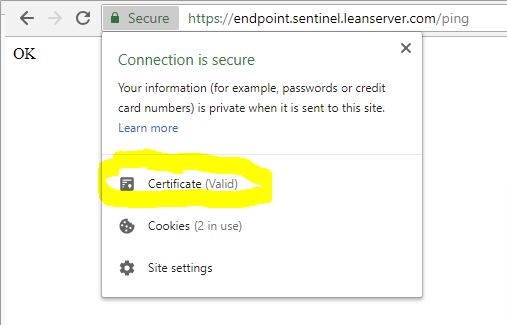
Resolution steps:
1. If the certificate IS NOT valid, please install the DigiCert root certificate to your trusted certificate store from: https://dl.cacerts.digicert.com/DigiCertGlobalRootCA.crt.
2. Make sure the LeanSentry code signing certificate is trusted on the server.
Our programs and installers are Authenticode-signed to insure authenticity. If your server does not have the root certificate for our code sign certificate, the installation will fail with the "Package could not be authenticated" error.
To verify this, right-click on the downloaded installer, go to Digital Signatures, and View the certificate on our signature. It is is INVALID, follow the resolution steps below to install the root certificate.
NOTE: In some cases, even if the digital signature below is valid, you may need to install an additional root certificate. Please see the note below this screenshot for more info.
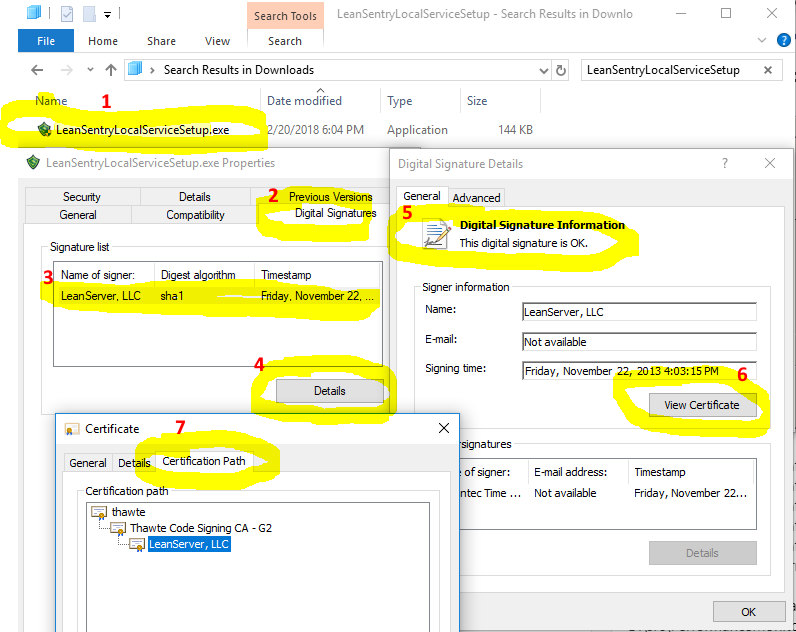
Resolution steps:
1. If the certificate IS NOT valid, please install the Thawte root certificate to your trusted certificate store from: https://knowledge.digicert.com/solution/SO4362.html.
AND
2. Until Oct 2018, you may also need to install a prior root certificate to install some Monitoring Service builds issued prior to 6/22/2018. Download this root certificate here: https://www.thawte.com/roots/thawte_Primary_Root_CA.pem.
3. Make sure your TLS setting allow the required TLS ciphers.
Our service endpoints are hosted behind the Azure load balancer, which uses a standard set of TLS ciphers. Some customers who configured hardened TLS settings have reported issues connecting to our endpoints for that reason.
In particular, this may happen if you use the IIS Crypto tool to harden your TLS configuration.
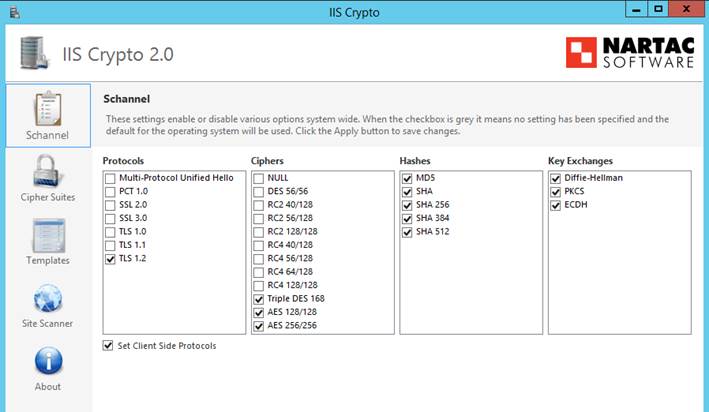
Resolution steps:
1. OPTION 1: Turn off the "Set Client Side Protocols" option in IIS Crypto.
For IIS Crypto 3.0, we need to disable the protocols individually.
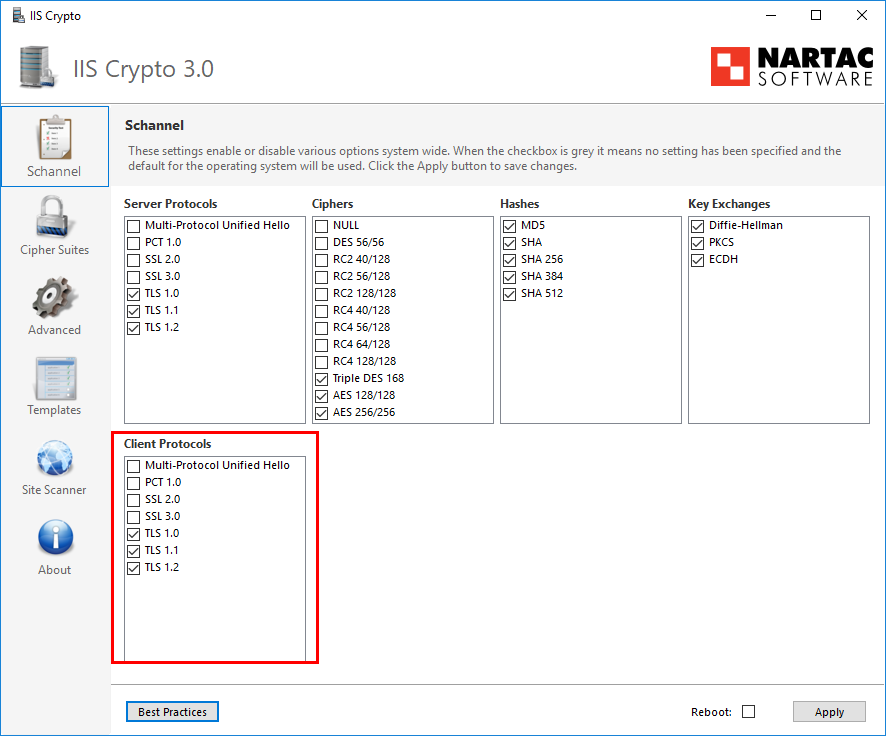
2. OPTION 2: Use the ssllabs.com test page to confirm the set of ciphers required by our endpoint (e.g. https://endpoint.sentinel.leanserver.com/ping), and make sure you have allowed those ciphers.
Comments
0 comments
Please sign in to leave a comment.