
UPDATE: If you are experiencing SSL/TLS/certificate issues during the installation or operation of LeanSentry, please see this article for solutions.
LeanSentry requires an outgoing connection to our cloud service to be able to work. Many corporate datacenter environments use a Proxy server to enable outgoing connections from servers in the datacenter. Read on to see how to correctly configure LeanSentry to work in these environments.
NOTE: If your environment does not restrict OUTGOING connectivity to the internet, you can safely skip this article.
Check if you need to configure Proxy settings before installing the LeanSentry Monitoring Service
In order to install LeanSentry Monitoring Service, you need to make sure that your Proxy settings are configured to allow you to access the internet.
In most cases, this is already the case. You will generally know that your proxy settings are NOT configured if you cannot access the internet from the server on which you are installing the LeanSentry Monitoring Service.
To test whether Proxy settings are correctly configured, open Internet Explorer, and navigate to https://endpoint.sentinel.leanserver.com/ping.
- You should see a page that says OK.
- If you are unable to load this page, continue on to set up the proxy settings.
Internet connectivity requirements
LeanSentry requires outgoing connectivity to the following internet addresses:
1. HTTPS://endpoint.sentinel.leanserver.com:443
2. HTTPS://endpoint.sentinel.leanserver.com:444 <-- NOTE: We recently switched to port 444 for primary communication.
3. HTTPS://update.leanserver.com:443
NOTE: These URLs will return errors when loaded in your browser. This is expected.
If your environment restricts outgoing internet access, you may need to grant specific proxy server exeptions in your reverse proxy server or firewall.
Configure Proxy settings before installing the LeanSentry Monitoring service
If you do not know your Proxy settings, request them from your network administrator. Once you know the settings, configure them using Internet Explorer as follows:
1) Open Internet Explorer
2) Open "Internet Options"
3) Select the "Connections" tab

4) Click "LAN Settings"
5) Check the "Use a proxy server" checkbox, and set the proxy server address and port on your network.
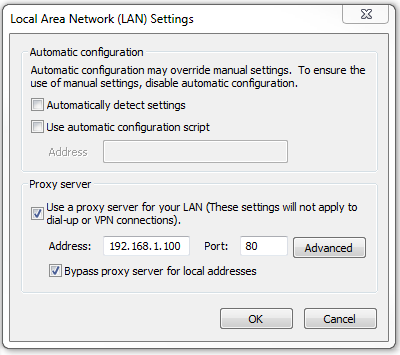
We also recommend checking the "Bypass proxy server for local addresses" checkbox by default.
That's it. Once you do this, just confirm that you can now access the test URL shown earlier. If it loads, you can continue to install LeanSentry.
Advanced: how LeanSentry works with Proxy settings
When you install the LeanSentry Monitoring Service, the setup will automatically configure the service to use the Proxy settings enabled in the account of the user installing it.
This way, even if you configure LeanSentry to run under a different account, it will automatically use the Proxy settings that you used to install it.
NOTE: If you manually set the Proxy settings for the account under which the LeanSentry Monitoring Service was installed, LeanSentry will first attempt to use those settings before falling back on the original Proxy settings obtained during setup.
If you need to configure the LeanSentry Monitoring service to use different proxy settings after installing it, you can do it in two ways:
1. (Recommended) Configure the LeanSentry Monitoring service to use a specific proxy
Open the LeanSentry Monitoring service configuration file, located in %systemdrive%\LeanServer\SentinelRecorder\preferences.config.
Change the "ProxyUri" setting value to the preferred proxy URL, e.g.:
<?xml version="1.0" encoding="utf-8"?>
<configuration>
    <appSettings>
        <!-- Configure proxy server -->
        <add key="ProxyUri" value="https://myproxyserver:8080" />
    </appSettings>
</configuration>
Note that this approach specifies the proxy for the LeanSentry Monitoring service only, without affecting any other programs running under this account.
2. Configure the Proxy settings in IE for the account under which the LeanSentry Monitoring Service is running.
Log in as that user account, and follow the instructions above to configure the Proxy settings. Note that all programs running as this account will automatically receive these Proxy settings.
IMPORTANT: After either of the two steps, restart the LeanSentry Monitoring Service by running the following command line:
net stop SentinelRecordingSvc && net start SentinelRecordingSvc
If you have any questions, or need additional help, please email us!
Comments
0 comments
Article is closed for comments.