
LeanSentry tracks every error across the server, IIS, and ASP.NET application stack. However, in some configurations ASP.NET may not provide complete error information for request errors, which will cause LeanSentry to under-report ASP.NET errors, and in some cases to never show them.
To enable full ASP.NET error tracking, you will need to make a tiny change to your application:
1. Add Leansentry.ApplicationMonitoring.dll for improved error tracking. This lightweight library automatically links application exceptions with your IIS errors, giving you the complete error tracking experience.
2. If your error handling handles application exceptions, log them to LeanSentry. A single line of code in your error handler to link the exception with the request.
3. Enable every ASP.NET error to be logged (in LeanSentry's environment settings). LeanSentry requires your permission to apply a small configuration change to make sure all your exceptions are counted.
Read on for the details.
1. Add LeanSentry.ApplicationMonitoring.dll
This lightweight library automatically improves exception tracking for most applications, and also provides an improved diagnostic experience for other issues.
To deploy, simply add the correct LeanSentry.ApplicationMonitoring.*.dll files to your application's BIN directory.
2. If your application handles errors, log them to LeanSentry inside your error handler
Many applications have their own error handling, by catching exceptions at the page, or application level. Some examples of this are:
- Try/catch in application code
- Handling exceptions in the ASPX Page.Error event
- Handling exceptions in the Application.Error event in global.asax
If your application handles the exceptions, or calls Server.ClearError(), those exceptions will not be reported via the standard ASP.NET unhandled error reporting mechanism and therefore LeanSentry will not see them.
You can easily route those exceptions to LeanSentry WITHOUT changing the behavior of your error handers, by doing the following:
1. Reference the LeanSentry.ApplicationMonitoring.dll library in your application (as above).
2. Log the exception to LeanSentry inside your error handler with a single line of code:
HttpContextBase context = ...;
Exception error = ...;

LeanSentry.ApplicationMonitoring.Monitoring.LogError(context, error);
TIP: We recommend you do this in a single place where all your errors are being captured. If you have multiple pages/places that log errors, consider placing this code inside a central error handler method you create for your entire application.
NOTE: This is NOT necessary in cases where you allow the exception to bubble out/be reported by ASP.NET as normal.
3. Enable every ASP.NET error to be logged (in LeanSentry's environment settings)
LeanSentry can automatically make a one-time, small configuration change to your server's configuration to improve your diagnostic functionality. However, LeanSentry makes no changes to your server nor causes any application pool recycles by default unless you explicitly allow it.
To allow it, open your environment settings, go to the "Other" tab and check "Allow LeanSentry to modify IIS configuration":

This will cause LeanSentry to enable full ASP.NET error logging to the Event Log for all ASP.NET applications on the server, by making a small change to the default ASP.NET Health Monitoring configuration in the Framework's root web.config (for 32 bit and 64 bit frameworks of all currently-installed versions).
NOTE: If you are concerned about a one-time application pool recycle, consider making this change during off-peak times, because it can cause your ASP.NET applications to restart the first time it's applied.
Bonus: line numbers in exception stack traces
If your exception stack traces are missing line numbers, this can make it harder for your developers to trace the error to a specific line of code.
To fix, make sure your are building your application with PDB files, and that you are deploying your PDB files along with your application DLLs.
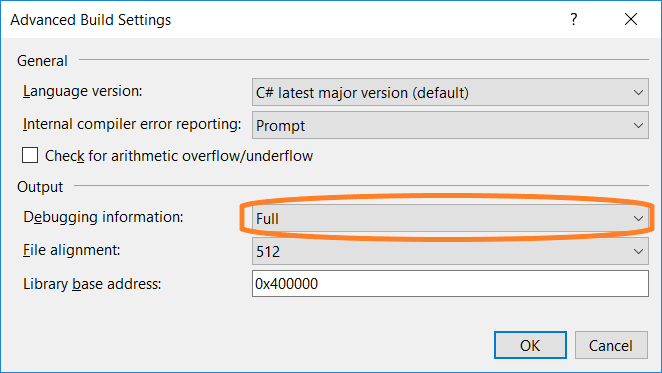
NOTE: You can still build your application in release mode with optimizations, this change simply makes sure that more information is included in exception stack traces and LeanSentry diagnostic reports.
Additional information
- How to use LeanSentry error monitoring to respond to severe errors, and proactive improve website service levels.
- Enhance LeanSentry monitoring with ApplicationMonitoring.dll.
- Enable error tracking for WCF web service applications.
Comments
0 comments
Article is closed for comments.