
Overview
Troubleshooting high memory usage in production has traditionally been a very difficult task. Production memory problems are often impossible to reproduce in a test environment, and usually offer little to no information about what caused the memory leak without intensive memory profiling (unacceptable in a production environment).
To make it easier, LeanSentry can now automatically diagnose the cause of high memory usage in ASP.NET applications. Best of all, it can do this with no performance overhead during normal operation and acceptable overhead when the problem happens.
Using LeanSentry's automatic memory diagnostic, you can:
-
Troubleshoot low server memory.
Understand and resolve high application memory usage in production to avoid poor performance and out of memory errors. -
Track down memory leaks, and memory usage regressions.
Detect and fix memory leaks, and memory usage increases introduced by suboptimal code changes or unexpected traffic. Analyze these as soon as they happen in production, without scheduling expensive memory investigations. -
Quickly investigate and tune memory usage in Production or Test environments.
Investigating a memory problem? Use LeanSentry to profile application memory usage in production or QA environment, and quickly make improvements.
LeanSentry automatically performs the memory diagnostic when your application experiences memory problems. You can the use the diagnostic information to begin solving the problems immediately - without having to wait for the problem to happen again, without complex production troubleshooting, and without having to reproduce the problem in the test environment.
How to use it
-
Make sure your account plan enables Background Diagnostics.
-
Install the required prerequisites on each server where you'd like diagnostics to take place.
- Install the LeanSentry Agent.
- Install the Windows Debugging Tools. Many LeanSentry diagnostics use the Windows Debugging Tools, the most stable and time-tested technology available for production debugging.
To obtain the Windows Debugging Tools, install the Windows 8 SDK or contact us for a standalone installer.
NOTE: By default, LeanSentry is configured to expect the debuggers to be installed in c:\Program Files\Debugging Tools for Windows. If you installation location differs, you may get the following warning on your environment settings page:

If you get this warning, you can provide the actual path to the debugger by editing %systemdrive%\leanserver\sentinelagent\preferences.config on the server on question, and setting the debuggerLocation32 and debuggerLocation64 configuration properties to the actual 32 bit and 64 bit debugger locations on your server. Be sure to restart the LeanSentry Agent service (sentinelagentsvc) to take effect. -
Enable the memory diagnostic in your environment settings.
You can turn it on for all servers in your environment, or only specific servers.
NOTE: Here, you can also modify settings that determine when LeanSentry performs the diagnostic, including the minimum memory necessary to trigger diagnostics.
-
LeanSentry will automatically detect memory problems like abnormal memory usage, or low server memory.
When you get a memory alert, open it to view the diagnostic.
-
On the alert page, expand the diagnostic to review the memory diagnostic results.
Each diagnostic event shown represents a single memory snapshot analyzed at the time of the problem.
See How to use the diagnosis to solve memory problems to learn more about the diagnostic information provided.
How it works
Detecting the memory problem
The LeanSentry Monitoring service continuously tracks memory usage of each IIS application pool, and automatically detects whenever memory usage increases significantly or contributes to low memory on the server. Unlike running your application under a profiler, this monitoring is extremely lightweight and has no performance impact to your application when there is no problem.
By default, LeanSentry will analyze the following events:
- Low server memory. When server is running out of memory, and your application uses more than 25% of physical memory.
- Significant memory increase. When your application's allocated memory increases significantly within the last hour.
- Periodic baseline. Roughly every 24 hours / during scheduled baseline time, to create a baseline of application's memory usage.
NOTE: You can set the minimum memory usage needed before analysis occurs and other memory diagnostic settings on your environment settings page.
Diagnosing memory usage
Whenever a problem is detected, LeanSentry will attempt to use the LeanSentry Agent to diagnose it. The Agent uses Windows Debugging Tools to perform the memory analysis.
NOTE: Memory analysis may take anywhere from 30 seconds to 10 minutes in production, depending on hardware and application's memory size. However, your application will continue to serve requests without interruption during this time. The LeanSentry Agent makes this possible by proactively recycling your application pool and analyzing the recycled process. This insures that the target worker process finishes all existing requests before being analyzed, and that new requests are handled the new worker process in the meantime.
Alerts
LeanSentry will detect the memory problem and generate an alert to inform you about it. When the memory diagnostic information has been collected, the Background Diagnostics service will analyze it and make the results available to you on the alert page.
How to use the diagnosis to solve memory problems
.NET web applications often experience memory problems due to the garbage collected memory model. Applications can freely allocate objects, relying on the the .NET garbage collector to automatically clean up these objects when they are no longer used. Even though the garbage collector has been highly tuned and does a great job cleaning up memory most of the time, many application memory usage patterns can lead to drastic memory leaks in production.
Memory profiling and tuning is a very complex activity. LeanSentry makes it easier, by automatically analyzing memory usage data, and explaining results simply along with specific suggestions to help fix the problem.
Each diagnostic event will break down the application pool's memory usage, including:
- How much memory was allocated by .NET applications, vs. IIS and other native DLLs.
- How the allocated memory is used by the .NET Framework.
The distribution of memory across the Garbage collection heaps will help you determine the memory tuning strategy. LeanSentry will explain the meaning of your memory distribution, and the strategy it recommends based on the data in the analysis.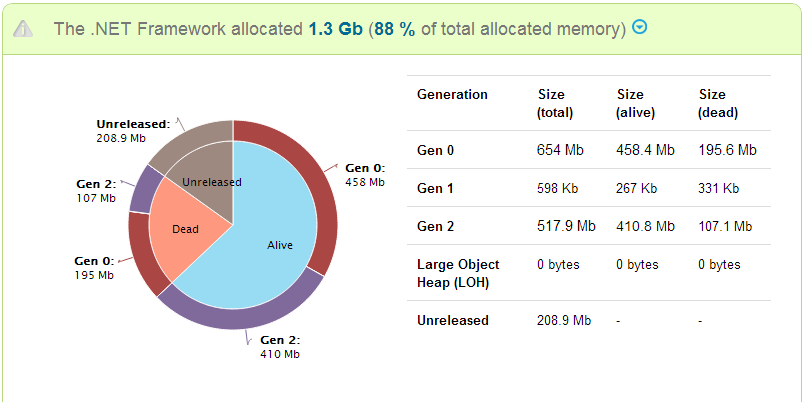
- Which objects consumed the most memory.
These object types were responsible for most allocated memory. Memory optimization efforts should focus on reducing allocation OR reducing references to objects of these types.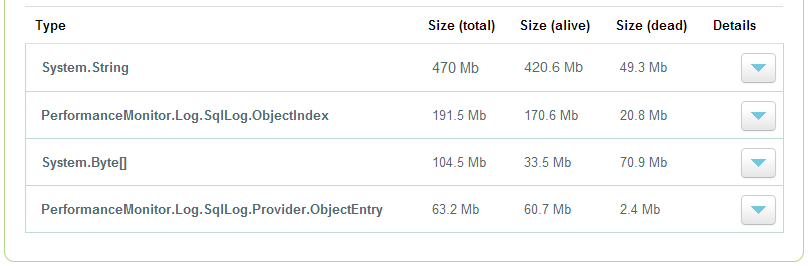
- The specific reference paths in your application that referenced these objects.
Break the reference chain to release objects so they can be garbage collected, and their memory can be released.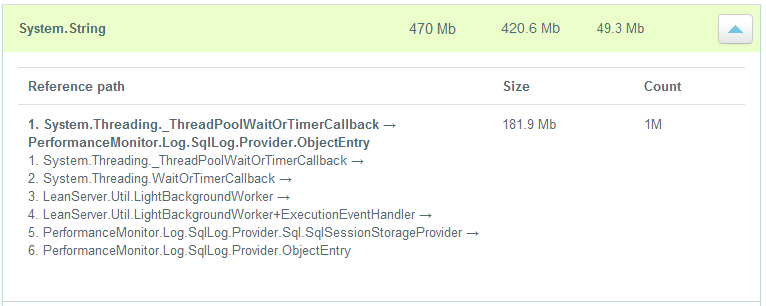
NOTE: LeanSentry does not provide the specific functions that allocated objects taking up memory. This type of analysis is not possible in production without a staggering 10-100x performance overhead of a memory profiler. However, reference paths are a surprisingly good alternative for determining the application code to optimize, without the overhead. The developer can also use this information to identify specific parts of the application that can be profiled in the test environment for more information.
Known issues
- Application pool recycling.
In order to perform the memory analysis without impacting requests to the application, LeanSentry must recycle the IIS application pool before beginning memory analysis. This is not a problem for most applications, as recycling already regularly happens under normal operation. However, a small percentage of applications may not function correctly when multiple worker processes are active.
Examples include ASP.NET applications using Cassette for resource bunding, and any other applications that cannot start while another instance of the application is active.
In this case, you can set the environment settings for the memory diagnostic to use several alternative methods for memory analysis:
- Graceful recycle (light). Recycles the application pool, but performs more lightweight analysis that keeps the recycled process alive for significantly less time.
- Live (light). Does not recycle the application pool. Analyzes the live worker process, using lightweight analysis that takes significantly less time. Requests are paused while analysis takes place.
- Memory analysis may take a significant amount on time in some environments.
Memory analysis may take anywhere between 10 seconds to 10 minutes or more depending on server performance, and memory usage of the application at the time of analysis. During this time, the worker process being analyzed continues to consume memory, and the debugger process performing the analysis may consume a significant portion of 1 CPU core. In the majority of cases, this is acceptable. LeanSentry automatically limits the frequency and number of analysis attempts to reduce performance impact. If memory analysis is creating too much overhead on your server, you can:
- Reduce the frequency of memory diagnostic in the server settings.
- Turn off memory diagnostic in your environment settings.
- Contact support to review more lightweight alternatives for performing memory diagnosis.
- If you receive server warnings indicating that memory diagnosis could not complete.
Try these troubleshooting steps:
- Make sure that the LeanSentry Agent and Windows Debugging Tools are installed on the server.
- Review the warning information to resolve the issue preventing diagnosis from completing.
- Contact support for more assistance.
- If you receive an alert but no memory diagnosis events are available.
Try these troubleshooting steps:
- Make sure that your account plan enables Background Diagnostics.
- Make sure that your server has the correct prerequisites for memory diagnostics.
- Review your environment settings page to resolve any server warnings indicating that memory analysis could not be performed.
- LeanSentry may take up to 30 minutes to generate the diagnostic event, due to time needed to capture the memory data and to analyze the information.
- LeanSentry may be limiting analysis attempts on your server to reduce performance impact.
- If these steps are not helpful, contact support for more assistance.
We hope the memory diagnostic saves you hours of time and frustration each time your application experiences memory problems. Have questions / comments / ideas on how to make it better? Please email us!
Comments
2 comments
The filename for the config that should contain the path for WinDbg is incorrect/missing:
Incorrect/not present: %systemdrive%\leanserver\sentinelagent\preferences.config
The preferences.config file does not exist by default, and must be created. Here is an example config file:
Please sign in to leave a comment.