
LeanSentry may take some time to observe interesting things in your environment, and will begin sending you more insights as it learns more.
In the meantime, you can take a few simple steps to get the most from LeanSentry:
1. Turn on IIS request logging |
||
|
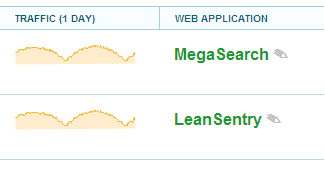
Not seeing your websites? LeanSentry relies on IIS logs to get request information.
|
|
|
2. Enable detailed ASP .NET error tracking |
||
|
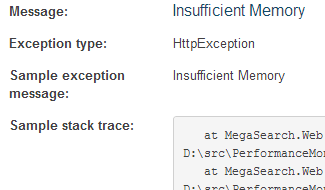
ASP .NET logs request exceptions by default, but sometimes may fail to log them correctly, which will stop LeanSentry from seeing them. To easily fix this, enable full ASP.NET error reporting.
|
|
|
3. Install the optional LeanSentry Agent for in-depth diagnostics |
||
|
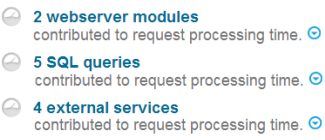
Do you want to see outbound HTTP requests, SQL queries, request traces, and CPU profiles? Install the optional LeanSentry Agent. NOTE: If you deployed using the Local installer, you already have the Agent.
|
|
|
4. Turn on alerts for important URLs and servers |
||
|
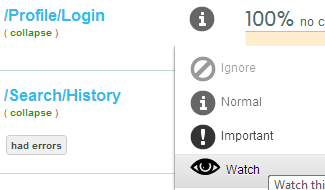
LeanSentry will only send you alerts for things you care about. Tell us which servers and URLs are important to you by toggling their watch level in the dashboard. To learn more about how the alert watch levels keep you aware of important problems and silence the noise, read more about alert watch levels. |
 |
|
5. Turn on slow operation tracking! |
||
|
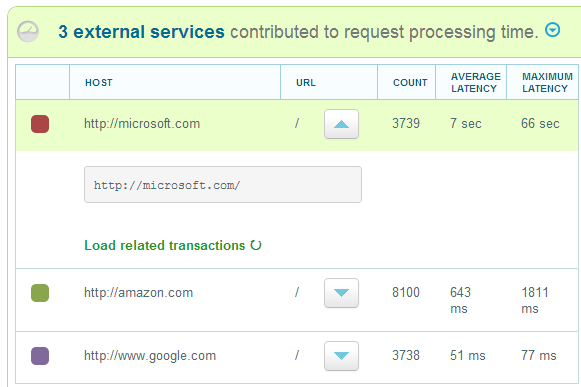
LeanSentry's slow operation tracking can give you application-level insight into slow loads. It automatically tracks HTTP/REST calls made by your application or REST libraries like Windows Azure storage ... and lets you instrument any part of your code. To enable, turn on slow operation tracking!
|
|
If you are missing data or have any other questions about LeanSentry monitoring, email us!
Comments
0 comments
Article is closed for comments.