
LeanSentry relies on IIS logs to monitor the request activity for a website. If a website has IIS logging disabled, the website will not be visible in LeanSentry.
To make sure each website is being monitored, turn on IIS logging for it.
NOTE: LeanSentry requires IIS logging to be in per-site W3C format, and requires certain log fields to be enabled to work correctly, including the DATE and TIME fields. For complete list of required and recommended fields, see Enabling log fields.
Does turning on IIS logs have high overhead?
IIS logging is very low overhead (< 1% for most websites), and is on by default.
How do I make sure IIS logs are cleaned up after a while?
If you did not previously have IIS logging enabled, chances are that you do not have a mechanism in place to delete the logs. Deleting the logs is important to make sure that they do not fill up the disk.
WARNING: LeanSentry deletes IIS logfiles after they are 30 days old by default, to prevent the disk from filling up. You can configure it to delete IIS logs after X days have elapsed on your environment settings page.
NOTE: A setting of 0 days effectively disables log cleanup.
How do I turn on IIS logging?
You can enable logging for your IIS website in two ways, either through the IIS Manager UI or using appcmd on the command line.
Using appcmd
- Go to your start menu and find "Command Prompt". Right click and run as administrator.
- Navigate to %SYSTEMROOT%\System32\inetsrv (e.g. "cd %SYSTEMROOT%\System32\inetsrv")
- Enter "appcmd set config /section:httpLogging /dontLog:False"
- Logging is now enabled!
Using the IIS Manager UI
- Open the manager by going to Start->Run->Type "inetmgr"
Alternative, go to Control Panel->Administrative Tools->Internet Information Services (IIS) Manager - Click on the current server in the connections pane.
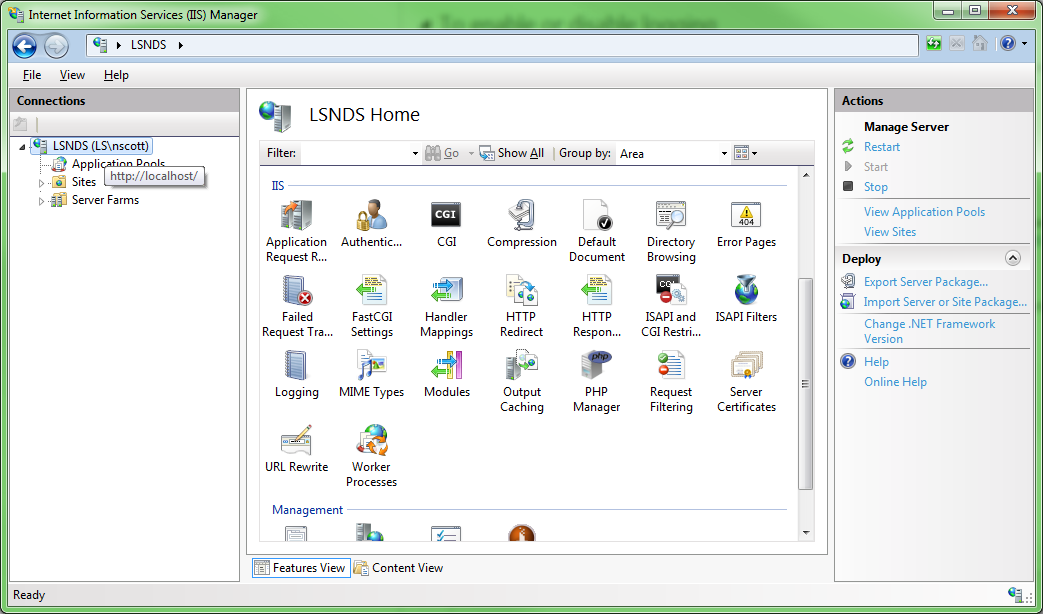
- Open up the logging section:

- Click Enable:
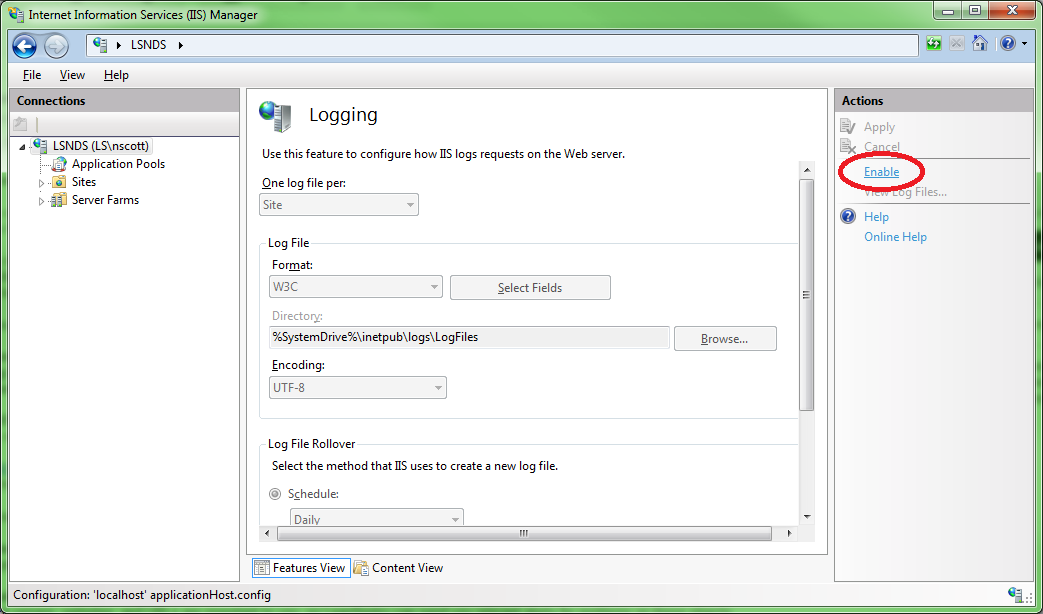
Enabling log fields
LeanSentry requires logging to be in the W3C format, and requires the following log fields to be enabled:
- Date
- Time
- URI Stem
- URI Query
- Protocol Status
- Protocol SUbstatus
- Time Taken
In addition, we also recommend that you enable additional fields to get the best reporting, including: Client IP Address, User Name, Method, Win32 Status, Bytes Sent, Bytes Received, Host, User Agent, and Referer.
See the screenshot below for an example of enabling fields. Yellow fields are required, and all checked fields show the recommended fields to enable.
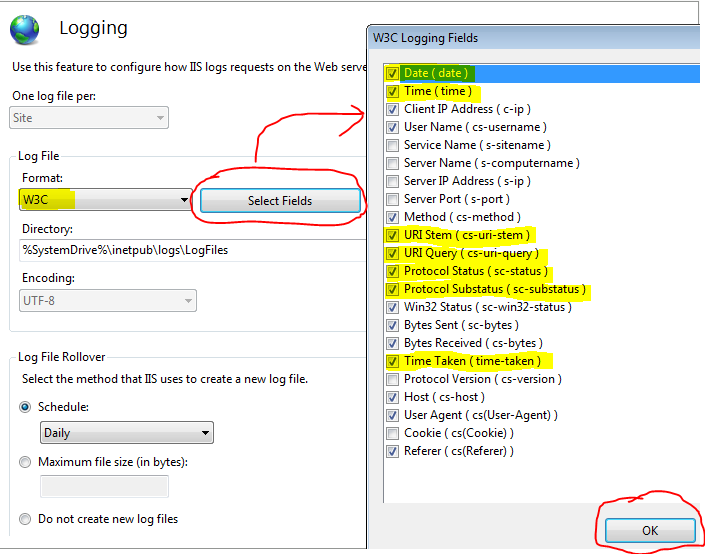
NOTE: After performing the changes, make sure to save them by clicking "Apply" in the actions page to the right.
That's it!
For more details, see http://technet.microsoft.com/en-us/library/cc754631(v=ws.10).aspx.
If you have any questions, email us.
Comments
0 comments
Article is closed for comments.